TradeCraft

An options workspace built around the position.

Analyze chains, assemble multi-leg positions, visualize risk, and revisit historical markets without losing the thread between them.
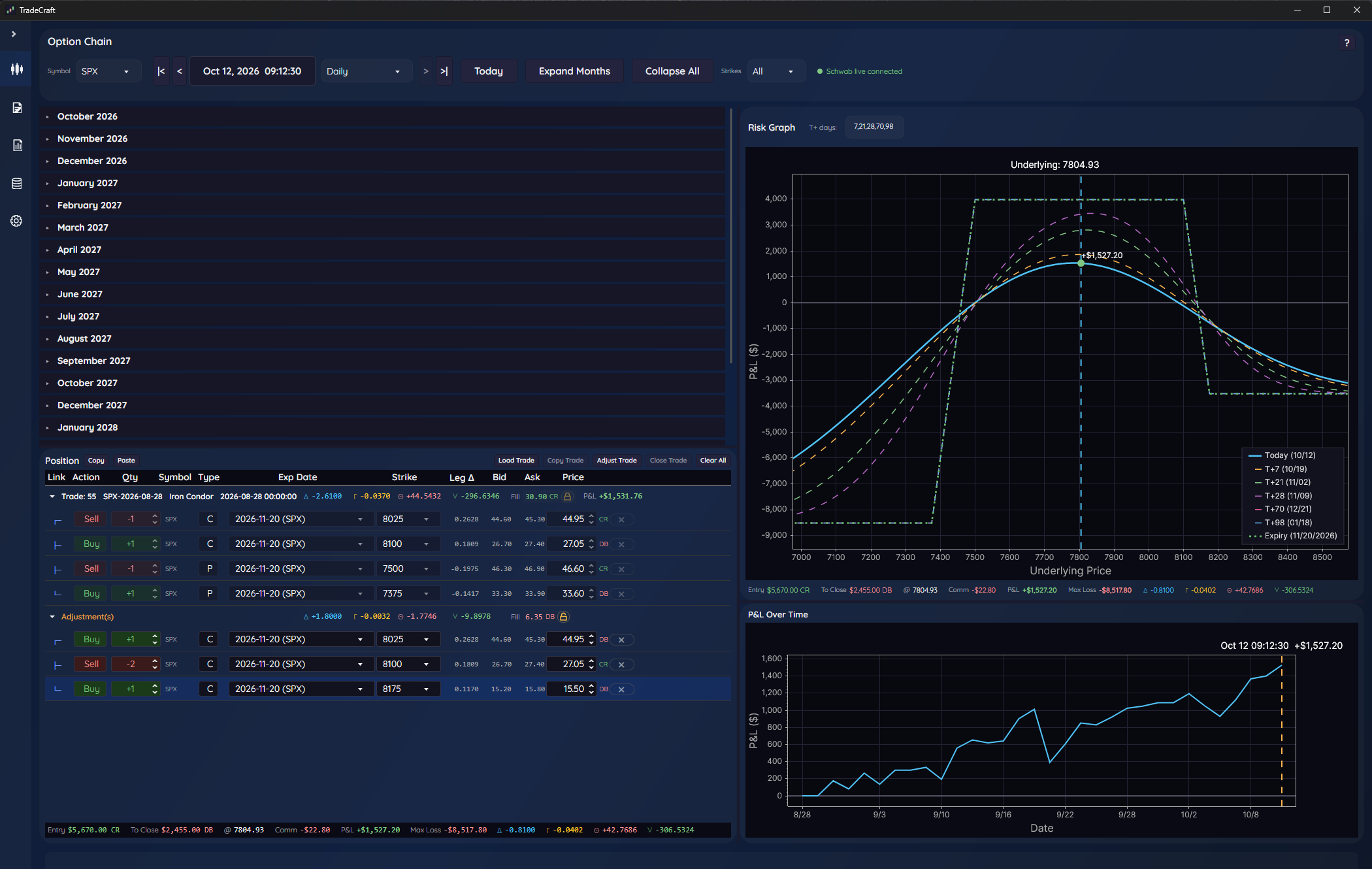
TradeCraft's Trade tab: the SPX option chain for November 2026 on the left, an iron condor in the position panel below it with a staged call-spread roll in its Adjustment group, and the risk graph with today's and expiry P&L curves and the P&L-over-time chart on the right
The Trade tab is where you work. The option chain on the left lists every strike and expiration for a symbol. The position panel holds your legs, and the risk graph and P&L-over-time chart on the right show what the trade is worth now and at each expiration.
Chain

Navigate market history

Move through supported time intervals and inspect option quotes, expirations, strikes, volatility, and calculated Greeks.

Position

Construct the idea

Add and organize option legs while maintaining a direct connection to their market context and modeled values.

Risk

See beyond expiration

Compare modeled P&L curves across dates and underlying prices, with position-level metrics kept close at hand.

Review

Study the path

Use imported historical data to step through a trade and inspect how its quotes, Greeks, and P&L changed over time.

Before you get started

What TradeCraft needs

TradeCraft provides the analysis workspace. Market data, provider access, and the resources needed to store that data are separate.

Platform

Windows 11

The current TradeCraft release supports Windows 11 only: version 24H2 or later, on a 64-bit Intel or AMD PC. Windows 10 is not supported.

Product coverage

Index and /ES futures options

TradeCraft supports options on the SPX, NDX, RUT and VIX cash indices (including the SPXW, NDXP, RUTW and VIXW roots) and options on the E-mini S&P 500 future (/ES), including the EW weekly series.

Data intervals

Daily through five minutes

TradeCraft is designed for daily and 5-, 15-, 30-, and 60-minute data. Available navigation intervals depend on the imported data.

Market data

Your broker's data; history optional

TradeCraft ships with no market data. Live chains, quotes and position prices come from your own brokerage account, and that is all you need to start. Historical option chains, for backtesting and replaying past dates, are optional: you buy them as files from a data vendor and import them once.

What the historical files need, and how to find a vendor

Broker market data

Schwab, Interactive Brokers and tastytrade

Live option chains and quotes come through your own brokerage account, read-only: TradeCraft never places, changes or cancels an order. Each broker has you enable API access on their site first.

What to ask your broker for

Historical imports

Flexible provider formats

Create reusable import formats that map a provider's CSV columns to TradeCraft. Single-file and split-file structures are supported, including ZIP archives.

Import timestamps

Exchange time in, local time out

Imported timestamps must use exchange time (U.S. Eastern). TradeCraft stores exchange time internally and converts it to the user's local time for display.

SPX option data storage

Plan storage around your history

Measured on SPX option data, including the SPX and SPXW roots; each additional symbol adds its own. A full SPX chain today is about 28,000 option rows per timestamp, so the interval decides the size.

Daily chains
About 0.35 GB per year; 5–10 GB for twenty years
15-minute chains
About 9 GB per year
5-minute chains
About 26 GB per year; 250–500 GB for twenty years

From a 25 GB TradeCraft database holding 407 million rows: SPX at 15-minute intervals for 2011–2018 and daily for 2020–2026. Older years are smaller because chains were smaller. Keep free space for imports and maintenance; twenty years at five-minute intervals has not been capacity tested.

Connectivity

Internet access is required

TradeCraft requires registration for a license, and internet access to validate it. Connected brokers, data providers, downloads, and subscription services also require connectivity. Offline access is not supported.

Local data

You control the database

Imported market data, trades, and settings are stored locally. TradeCraft does not automatically back up or synchronize the database.

Current limitations

Know the present boundaries

TradeCraft currently supports Windows 11, requires your own brokerage account for live data and internet access, and has limited large-database capacity testing.

View requirements and getting started

A closer look

The screens you will work in.

Real screens from the current release, on a live broker feed. The position panel below shows an iron condor with a roll in progress: the trade's own fill on its line, the adjustment's on its own, and the combined position in the footer and the risk graph.
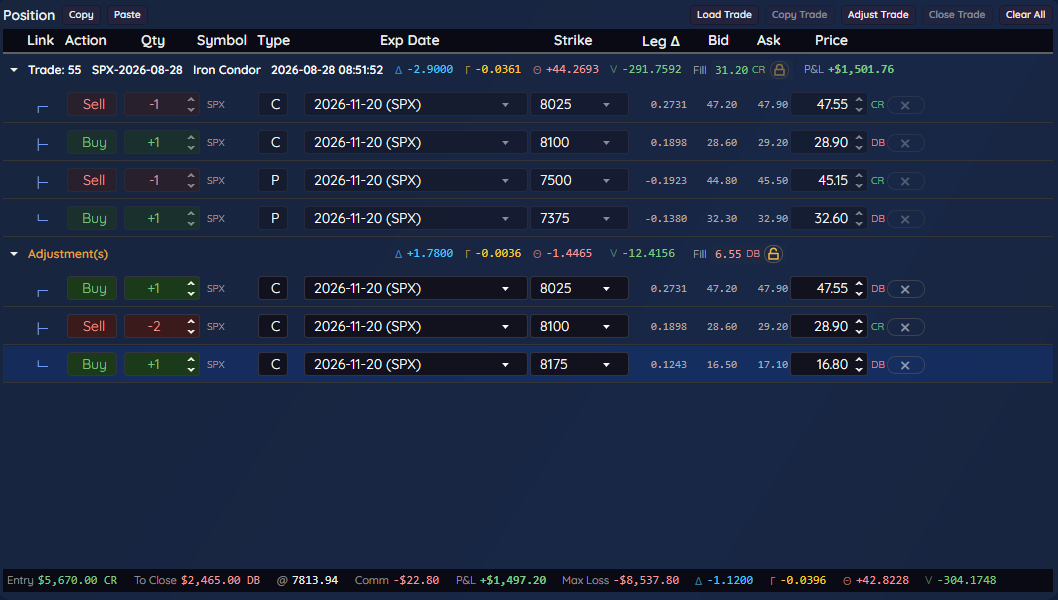
TradeCraft position panel: an SPX iron condor with its four legs under a Trade header line, each leg showing its delta, bid, ask and price. Below it, an Adjustment(s) group stages a call-spread roll with three legs, and the footer shows the trade's delta, gamma, theta, vega, max loss and P&L with the roll included
The position panel: an iron condor with a roll in progress. The trade's own fill is on its line, the adjustment's on its own, and the combined position in the footer and the risk graph.
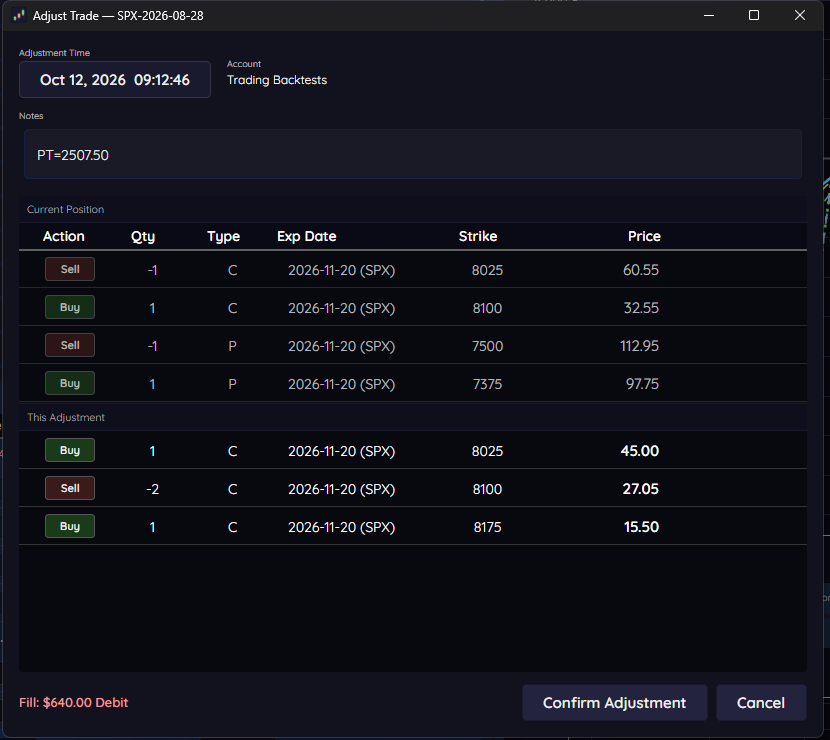
TradeCraft Adjust Trade dialog for an SPX iron condor: the current position's four legs, the adjustment's three call legs with their quantities, strikes and prices, the fill as a $640.00 debit, and the Confirm Adjustment and Cancel buttons
Adjust Trade: stage each leg of the adjustment with its quantity, strike and price, check the fill, then confirm or cancel.
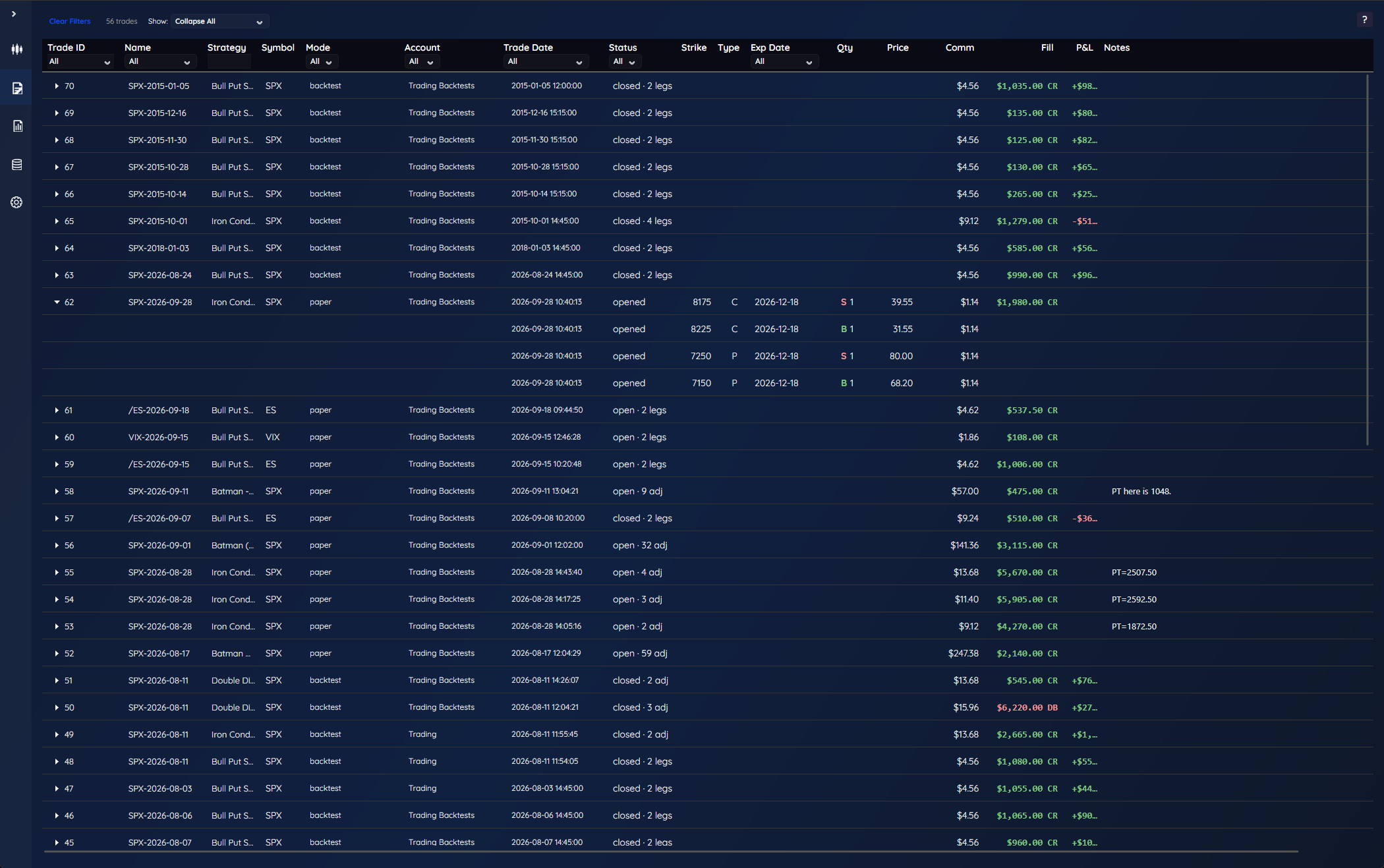
TradeCraft Journal: a list of trades, each collapsed to one row with its strategy, symbol, mode, account, trade date, status, commission, fill and P&L, and one trade expanded to show its legs with time, strike, type, expiry, quantity, and price; filters across the top for trade, name, strategy, symbol, mode, account, date, status and expiry, and a Show menu to collapse or expand all trades
Journal: every saved trade, collapsed to one row each. Expand a trade to see its legs, and use Show to collapse or expand them all. Filter by strategy, account, status and date to find what you need.
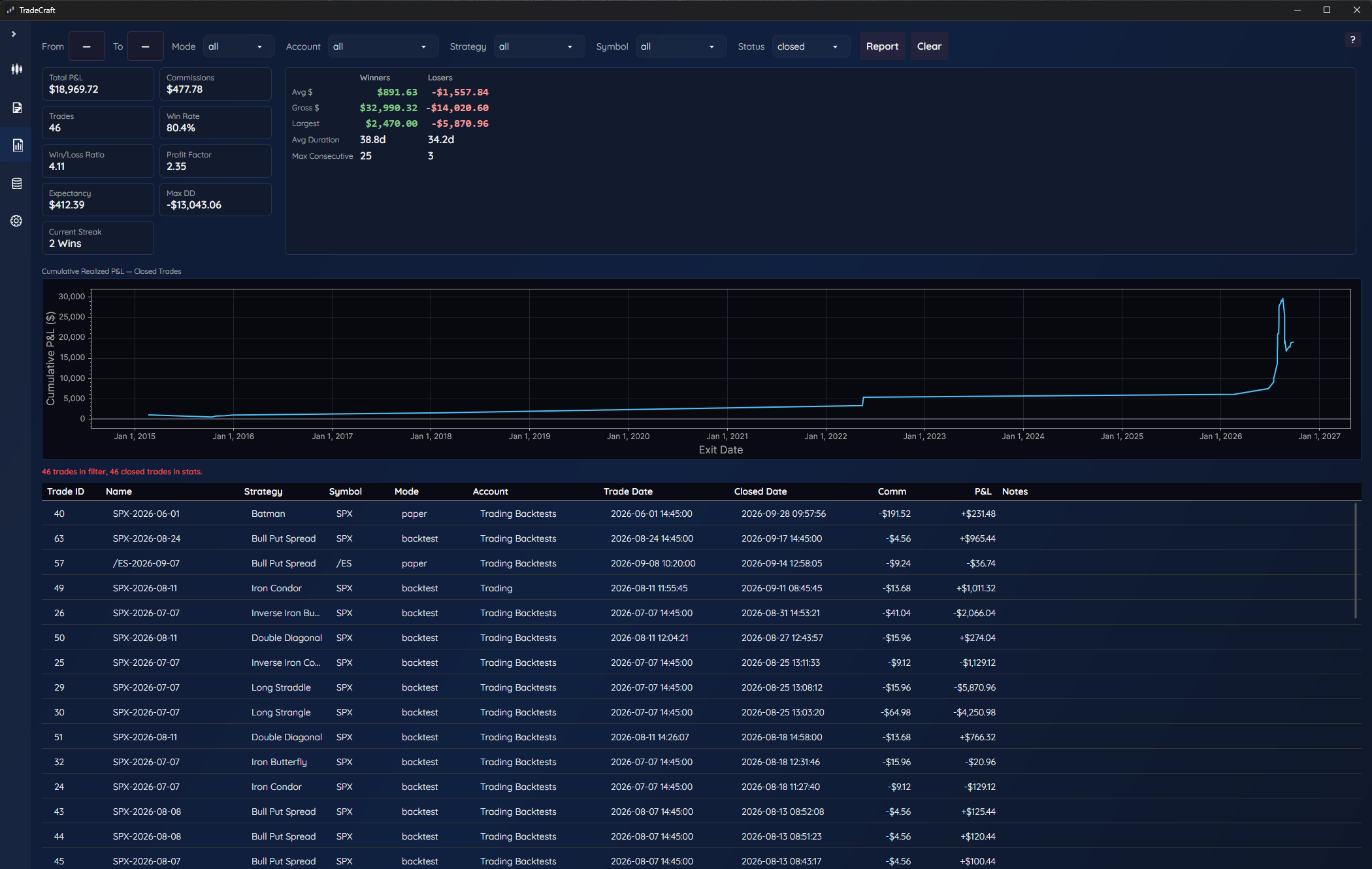
TradeCraft Reports: summary tiles for total P&L, commissions, trades, win rate, win/loss ratio, profit factor, expectancy, max drawdown and current streak, winners and losers averages, cumulative realized P&L chart, and the filtered list of closed trades
Reports: totals, win rate, profit factor and drawdown for any filter you set. The chart shows cumulative realized P&L over time, and the list below holds the closed trades behind the numbers.

Historical data

Adapt the import to your provider.

Historical files are imported on the Data Mgmt tab. The built-in format already recognizes the common column names for every field; for anything else, define a format once from a sample of your vendor's file and reuse it for every import. Point it at a folder or a ZIP and start.
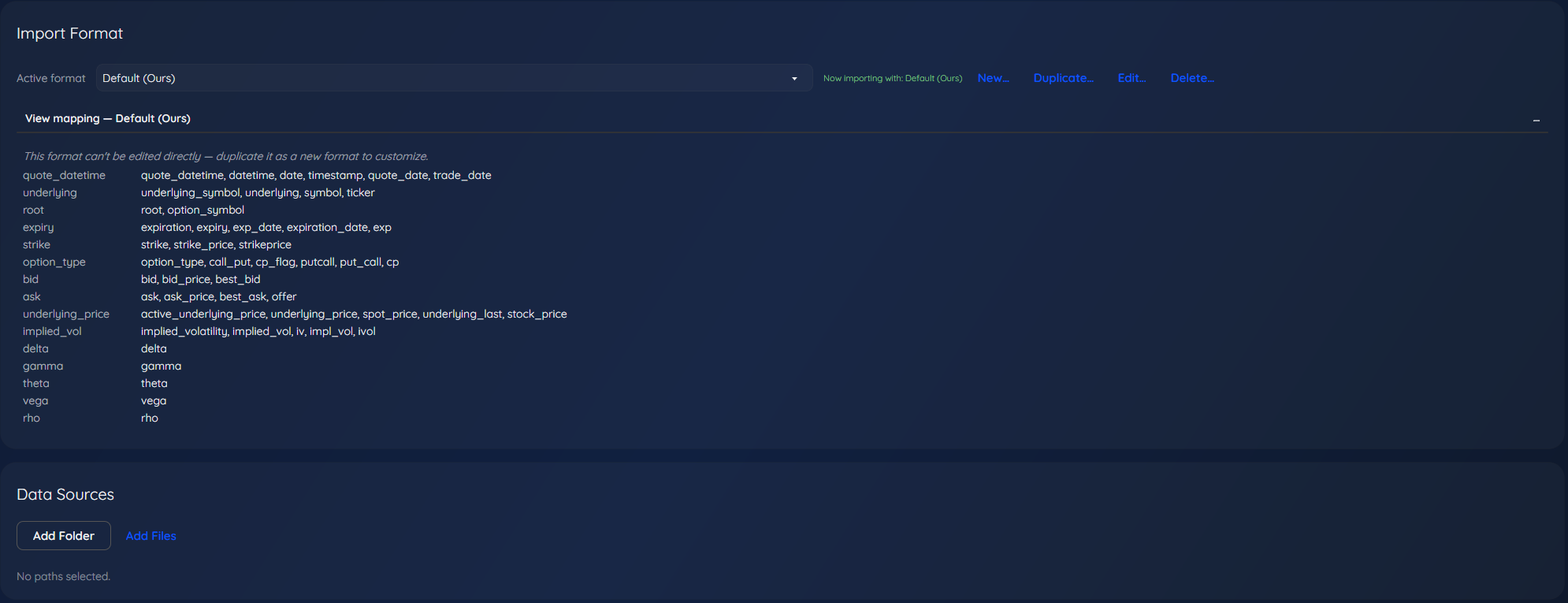
TradeCraft Data Mgmt tab: the Import Format panel listing each field TradeCraft needs and the column names it accepts for it, and the Data Sources panel with Add Folder and Add Files
Data Mgmt: choose the import format that matches your files, add the folders or files to read, and start the import. Each format lists the column names TradeCraft accepts for every field.
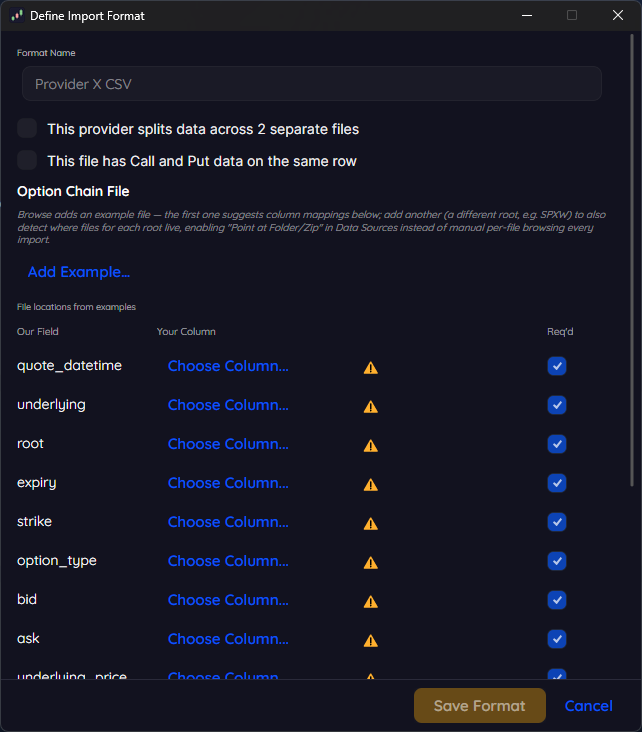
TradeCraft Define Import Format dialog: a format name, an Add Example button, and a list of TradeCraft fields each with a Choose Column control for matching the vendor's column
If your provider's files use different column names, define a format from a sample file. TradeCraft suggests a match for each field, and you confirm or change them before saving.
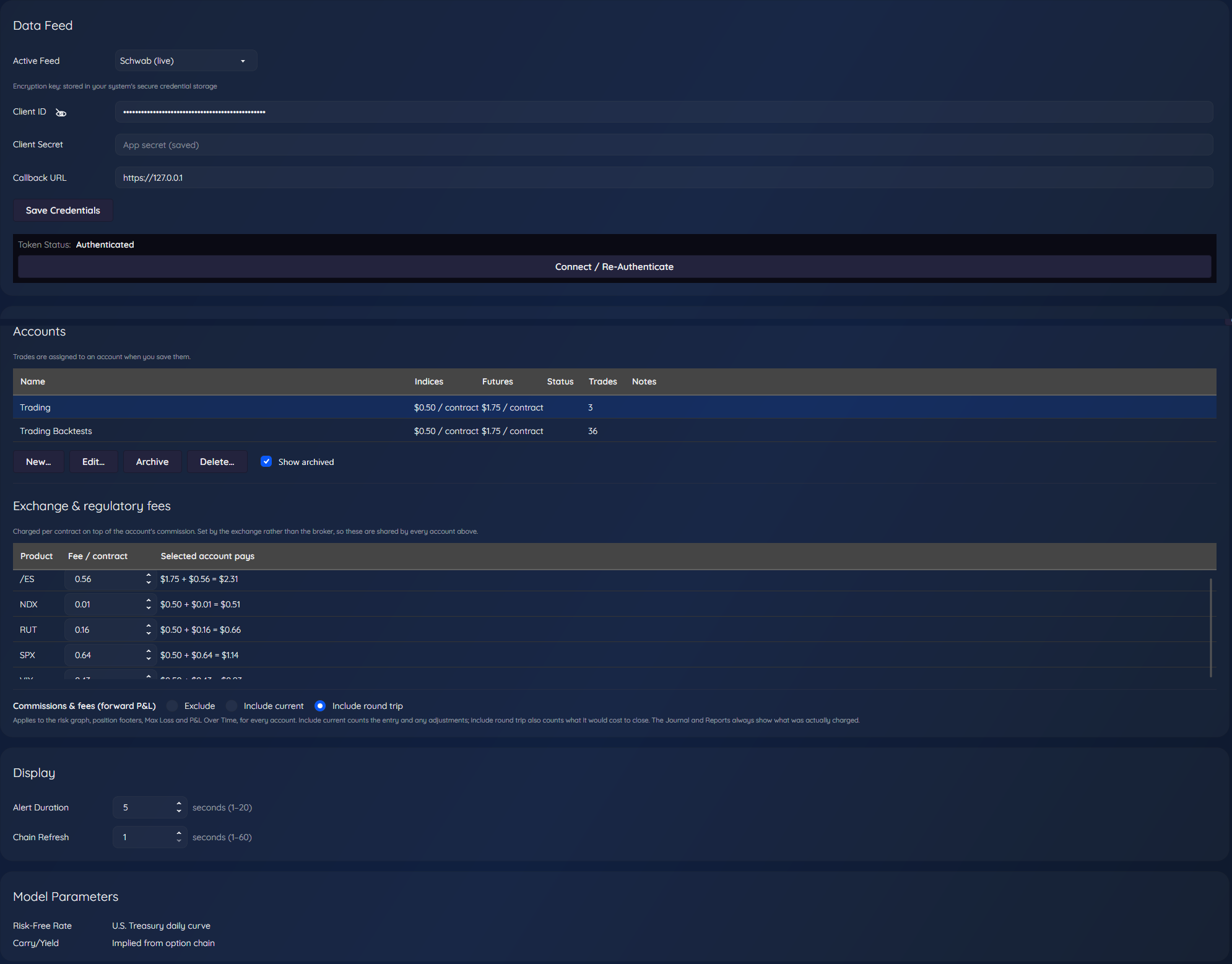
TradeCraft Settings from the Data Feed panel down to Model Parameters: the active feed set to Schwab (live) with masked client ID and a saved client secret, the Accounts list with its New, Edit, Archive and Delete buttons, the exchange and regulatory fees per product, the commissions and fees choice for forward P&L, the Display settings, and the Model Parameters
Settings: choose the broker feed, save your own API credentials (encrypted on your computer), and connect. TradeCraft never sees your broker password. Below the feed, manage your accounts, exchange fees, how commissions count in forward P&L, display options and model parameters.

Development principle

One position. One calculation path. One coherent view of the trade.

TradeCraft is released software and is actively being developed. Every subscription includes every update in its term. New releases add capabilities and refinements. A current subscription always keeps you up to date.